How to add a logo or GIF to Windows Terminal App
I am a Developer Evangelist at Twilio, co-author of Learn to Cloud, co-host of Random Cloud Chats podcast, AWS Community Builder, and YouTuber. Passionate about helping people get into cloud and sharing my learnings in cloud, DevOps and now DevRel.
Hello amazing people 👋
Hope you all are doing great. I am here with my first blog post of 2021 and it started with an astounding recommendation that I made to one of the fellow clouders @jonnychipz. I remember I added that Azure Functions GIF to my Terminal immediately as Marc was demonstrating it on one of the live streams.
So I thought, why not compose an article to show how to do it! I will begin with what Windows Terminal App is.
Windows Terminal App:
So what is Windows Terminal App, in Microsoft's own words " Windows Terminal is a new, modern, fast, efficient, powerful, and productive terminal application for users of command-line tools and shells like Command Prompt, PowerShell, and WSL." Here are some key features:
- Multiple tabs
- Beautiful text
- Settings and configurability
- Last but not the least, it's open source 💜
Feel free to check it out on GitHub:
Customization:
Let's dive into customizing the black & white terminal and bring some personal touch to it.
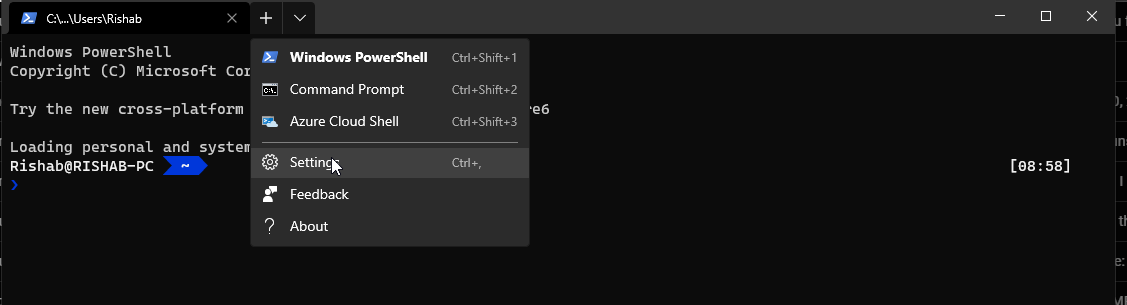
Now to add a logo or a gif to your terminal, navigate to the Settings:
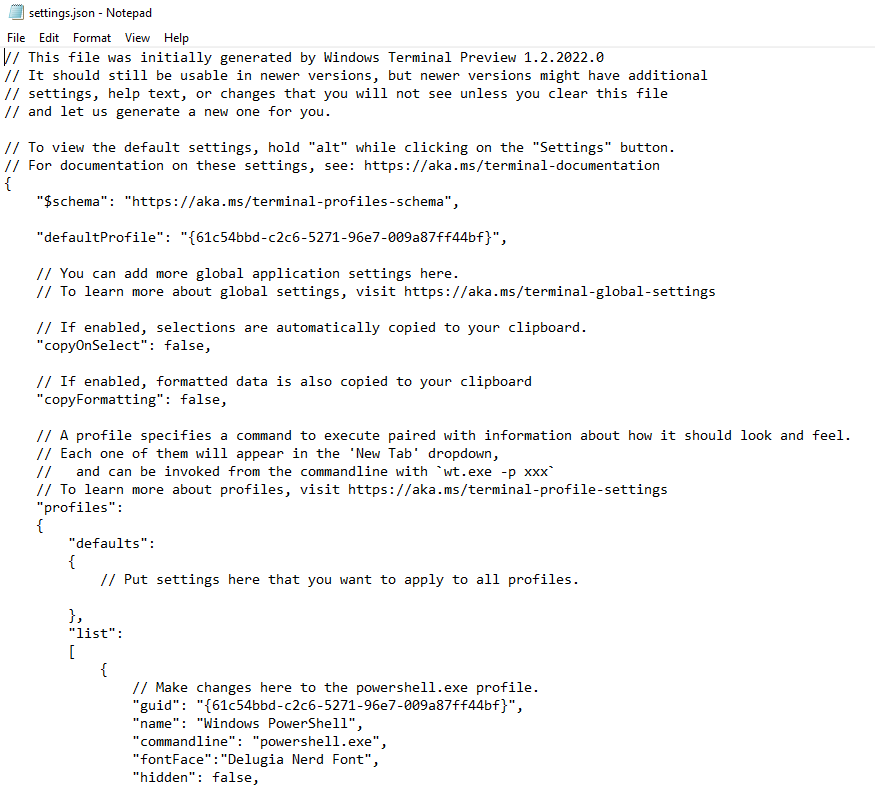
The settings should open up as a JSON file:
Now to add a logo or GIF, add the backgroundImage to your 'defaults' property, this way it will appear on all of the terminals (CMD, PowerShell, WSL etc.)
"backgroundImage":"https://rishabincloud.s3.amazonaws.com/nobg.png"
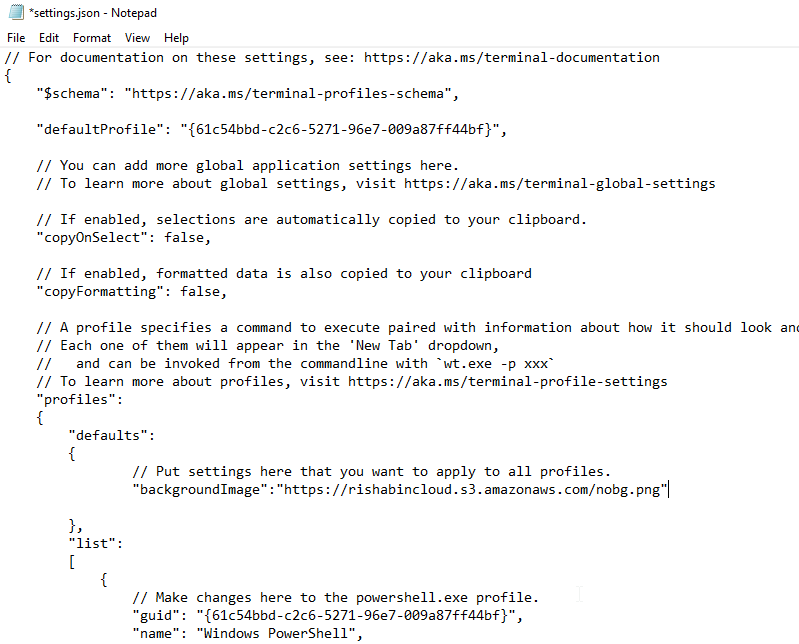

But hey, this doesn't look neat, it just appears as a background! So now we will add few more properties for the backgroundImage:
"backgroundImageAlignment" : "bottomRight",
"backgroundImageOpacity":1,
"backgroundImageStretchMode": "none"
So here is how your settings file should look like:
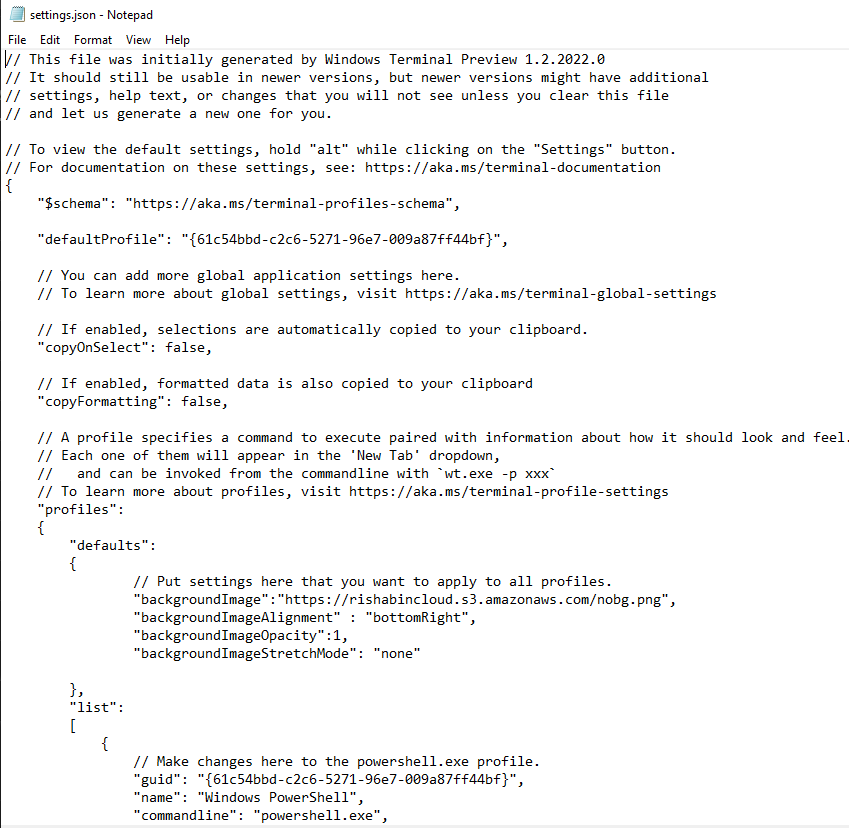
And now if we look at the terminal:
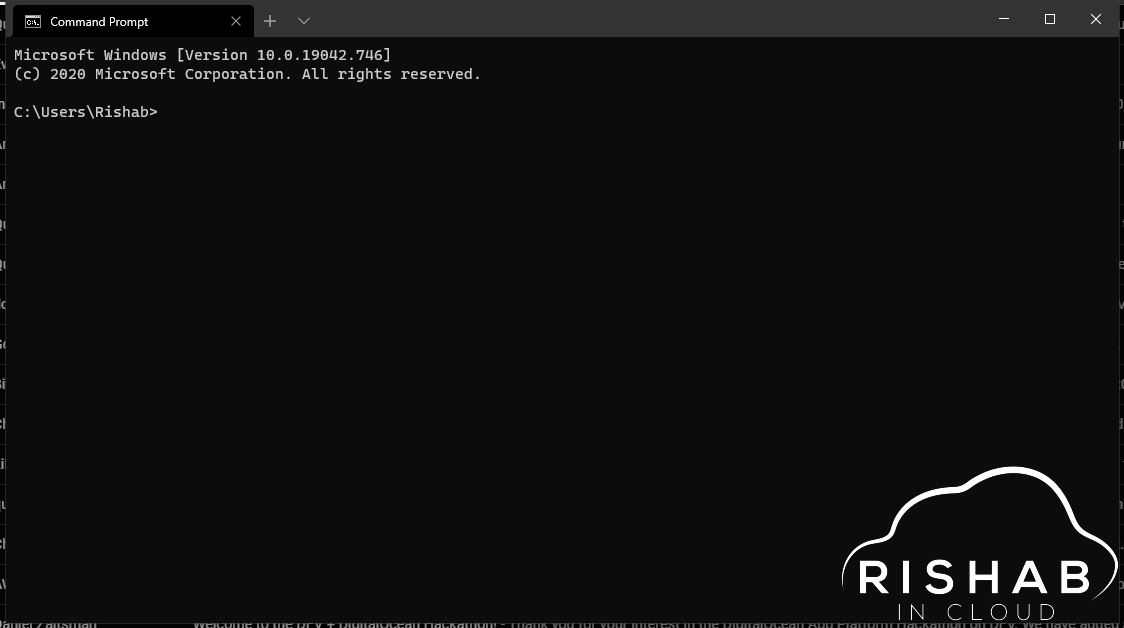
Looks pretty eh!
Bonus:
Here is the link so you can add the Azure Functions Mascot to your terminal:
backgroundImage":"https://raw.githubusercontent.com/marcduiker/azure-functions-university/main/img/zappy-university-192.gif
Thanks to Marc.
Also, you can customize the color scheme, I have been using WSL for a while now, here is the Ubuntu theme that I am using with it 😉
            // Color Scheme: UbuntuLegit
            "background":  "#2C001E",
            "black":  "#4E9A06",
            "blue":  "#3465A4",
            "brightBlack":  "#555753",
            "brightBlue":  "#729FCF",
            "brightCyan":  "#34E2E2",
            "brightGreen":  "#8AE234",
            "brightPurple":  "#AD7FA8",
            "brightRed":  "#EF2929",
            "brightWhite":  "#EEEEEE",
            "brightYellow":  "#FCE94F",
            "cyan":  "#06989A",
            "foreground":  "#EEEEEE",
            "green":  "#300A24",
            "name":  "UbuntuLegit",
            "purple":  "#75507B",
            "red":  "#CC0000",
            "white":  "#D3D7CF",
            "yellow":  "#C4A000"
     }
See you in the next blog and you can follow me on Twitter @rishabk7.